What is “Data Operations”? According to one pundit (me), it’s the effort to fix “…the connective tissue between the different parts of our business. When it doesn’t work or causes problems it creates hidden and visible problems that prevent businesses from running as expected.”
This quote, while well-meaning, underestimates some of the exploration, experimentation, and ground truth data fixing that needs to happen to solve problems in your business. The basics of munging data are messy. You might need to do some experimentation to determine the right way to fix something, and it might be too early to build scalable solutions when you are solving one-off problems.
One example is plain text manipulation of items in spreadsheets or in data pipelines. Whether you are using SpreadsheetOps or you are building pipelines to systematically improve your data every time you encounter an object, you need the logic to fix the problem. And once you understand the logic, formulas in spreadsheets might be the fastest way to prototype the solution.
Take this example:
-
You have a list of items in a column, and don’t know how many items are in your list
-
You want that list to be written out as a text string with commas
-
For the last item in the list, you want to write it out slightly differently to conform with the grammar rule for the last item in a list (adding “, and “ before the last item
Let’s get started! First, we’re going to need to talk about lists and what makes them special in spreadsheets.
A primitive that shows up a lot: Lists
Lists (or arrays) might be one of the most frequent structures you run into when playing with data. Account Lists, People Lists, and Reference Lists are all examples of lists you might need to parse when looking at unknown data.
A list in a spreadsheet might show up in a couple of different ways:
-
as a string that’s delimited (e.g. “one, two, three”)
-
as a reference to an object range (e.g. {a1,b1,c1})
-
as adjacent cells or many individual cells:

-
as a column or columns of values:
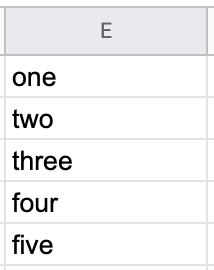
The end product: a list of like items. Most people would describe this as a comma-delimited list, even when it doesn’t appear that way.
A few functions in Google Sheets are typically important with lists:
-
COUNTA – this function counts the number of rows in a list. In the list above, COUNT needs to have a reference for specific items to account, but COUNTA can find an arbitrary amount of items in a row with some blank items and some non-blank items, returning an amount. =COUNTA(A:A) above will count all of the cells in the A column and return the answer of 5.
-
JOIN and TEXTJOIN – these functions help you take an array (usually a range of cells in a spreadsheet) or a series of strings and to coalesce them into a delimited list. In the example above, we’re using TEXTJOIN to make a list of all of the items in column A.
-
SUBSTITUTE – this function lets you replace existing text with new text inside of a string. If you already have a list of things, you might use this function to find certain items in that list and replace them with other items. In our formula, we find the last item in the list and add an oxford comma to make a proper grammatical list.
Putting together the logic for our formula
To transform our column of unknown row count into a known list of items, we’ll need to use the COUNTA function. This is important because we need to know the number of items in the final list to find the last item where we want to substitute a special value.
The expression COUNT(A:A) uses a special syntax allowing us to count all of the values in the A Column while ignoring blank values. (Normally, you might use an exact range like COUNT(A1:A5) to indicate that you know you will have 5 rows.) Using this special shortcut also allows us to use a simple math expression to calculate the index of the last element in the list using COUNTA(A:A)-1. We need the last element to know where we want to substitute “, AND” for the “,” that we will get when we join the list.
We’re going to use the TEXTJOIN function instead of JOIN because we want the output of our list to ignore the blank rows in column A where there is no value. The TEXTJOIN parameter of ignore_empty lets us skip these blank rows.
Now, we can use SUBSTITUTE to stitch all of this together. This function replaces existing text in a string with new text. In our case, SUBSTITUTE looks for the occurrence of commas, finds the last one in our list (COUNTA(A:A)-1 items tells us this answer), and replaces that “,” with “, and” to perform the proper transformation.
The final result
Here’s the final formula that took a number of items and transformed them into our desired string:
=SUBSTITUTE(textjoin(", ",TRUE,A:A),",",", and ",counta(A:A)-1)
The items we reviewed:
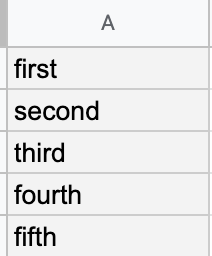
The result from the formula:
first, second, third, fourth, and fifth
This formula will work for an arbitrary number of records in column A, outputting the requested string.
This is a great example of the process to take an idea from start to finish using a formula in Google Sheets.
What’s the takeaway? A few minutes spent on a formula in Google Sheets is a great way to prototype the transformations you need for data pipelines. While it won’t always give you a solution for the ultimate problem, fixing it in a spreadsheet for a known group of data is an excellent start to solving your problem.