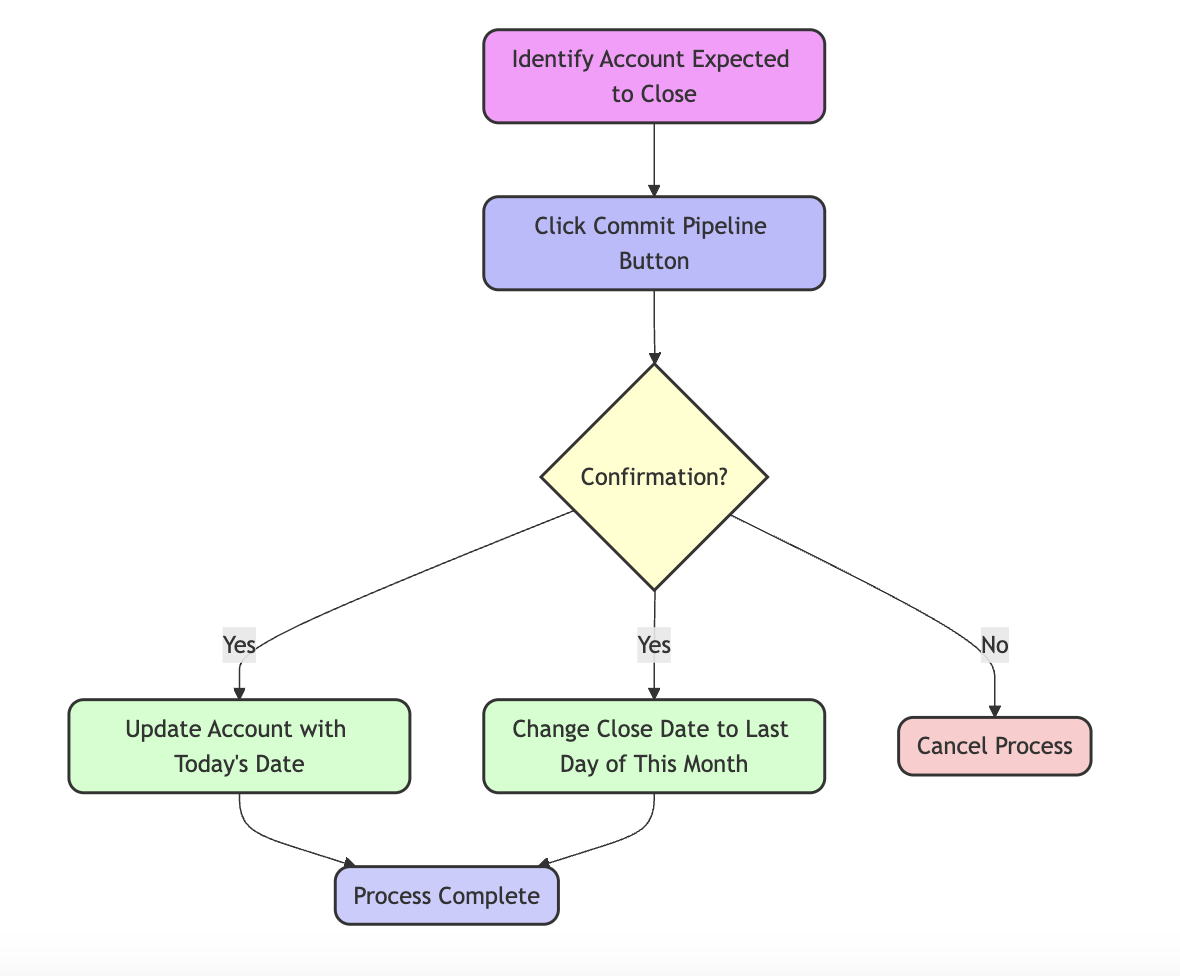
A message comes in over Slack: “Can you add a button in Salesforce that reps can use to signal that they are committing accounts to close this month?” Not just store the date where they move an account from an earlier stage to “Committed”, but add a marker that they identified which accounts will close.
“Sure!” you respond, but you’re not sure that Salesforce can add an arbitrary button to the UI and start a process to update that account without asking users to do some pretty confusing stuff.
Fortunately, there is a special kind of automation in Salesforce called a Screen Flow that does exactly what it sounds like – it creates a process of screens and buttons that is launched from the Salesforce UI, styled like Salesforce and starts with the context of the Salesforce record where it’s called.
Things to do before you build
First, you need to know what’s possible within Flows. Flows have a few different components in Salesforce:
-
Screen is the canvas area where each screen is displayed, e.g. the initial screen or the confirmation screen
-
Fields and Buttons let you store or display information and take input; depending on the type of field, they have differing starting requirements
-
Decisions identify conditions that branch to one screen or another
-
Actions trigger actions from the flow
-
Records in the system can be retrieved or updated in the flow process
There are many more different flow resources to help you build mini applications within Salesforce.
The second and most important step is to identify what you want to accomplish in your flow.
Drawing a diagram to test usability
You might be an outline person, an “arrows-and-boxes” type diagrammer, or an “if this, then that” kind of storyteller. It doesn’t matter how you describe the actions the flow needs to take if it makes sense to your team how to build it.
You’ll need to know:
-
What action triggers the flow to occur? Are there any entrance conditions to test (an account with certain parameters, a minimum amount of time after some other event, or another condition)? Does it trigger automatically or with a button click?
-
What information is needed to complete the flow? Is it simply the result of loading a record and asking for actions relevant to that record, or do you need to look up information from another object or record?
-
What error conditions are possible, and how do you want to handle them? If it’s not possible to complete your flow, can you exist gracefully? Do you need to protect against doing the action twice on the same record?
-
What next actions need to happen as a result of completing the flow? How do you know the flow completed successfully?
Once you have the information, create a diagram like the one above to reference when creating your flow.
(Pro-tip: if you prefer having a diagram drawn for you, cut and paste your outline or state machine description into ChatGPT and ask it to create a Mermaid.js diagram of the process. You can then visualize it in Mermaidchart.com.)
A Checklist to confirm the flow
One more thing that helps when you’re creating flows is to write down the key steps to completing your flow, including:
-
Test records to use
-
The name and description of the flow
-
The name and description of variables on each screen and any global variables and contents
-
Don’t forget to create a variable called
recordIdto store the values from the record where the flow is started
The goal is to document your thinking for yourself and your team and to protect against versioning bugs in Salesforce.
Now, you’re ready to build
Test records do help when you’re building in Salesforce. It would be nice if everything could be done in a sandbox, but some things just need to be tried in production given other integrations.
The list you created gives you the steps to build your flow and get it going, and reminds you of the conditions you wanted to test. Now comes the important part: making sure it works! If you need to change the workflow, you’ll have a ready-made place to keep your notes and identify what changed.
Building Salesforce flows is one version of this process, but the basic outline works for other technologies too. Design, document, build, test, refine, and release!
What’s the takeaway? Some of the most important steps you take in building automation are the prototyping and thinking about what that automation should do. A bit of preparation will help you document your flow and make it easier to build and revise it.